Setting up
Setup is one connection and takes about a minute.
Choose Connect GitHub
The dashboard offers this until a repository is connected. It takes you to GitHub to install the Git Sync GitHub App on your personal account or on an organisation. Pick the account that owns the repository you want to back up to.

Give it one repository
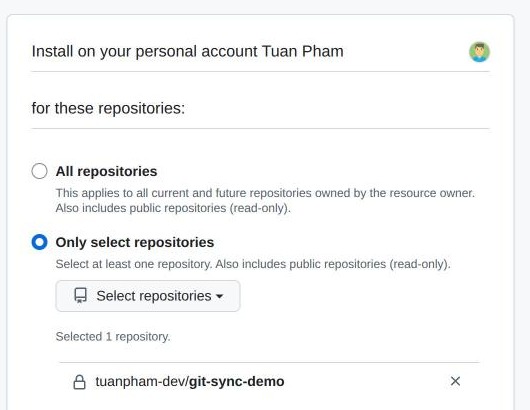
On GitHub, choose Only select repositories and pick the one for your backup. Git Sync never sees the repositories you leave out. An empty repository is the easiest start, and an existing one is fine.
Pick the repository and branch
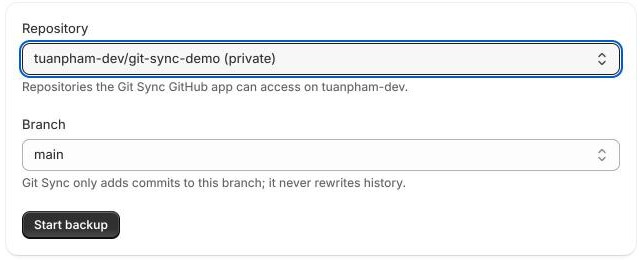
Back in Shopify, choose where the backup goes. Git Sync creates the branch with its first commit if the repository is empty. The first backup reads everything in the store and can take a few minutes on a large catalogue. You can keep working while it runs.
When something needs attention
- The branch is protected
- If the branch refuses commits from apps, the setup screen says so and nothing is saved. Choose another branch, or allow the Git Sync app to push to that one in the repository’s branch protection rules on GitHub.
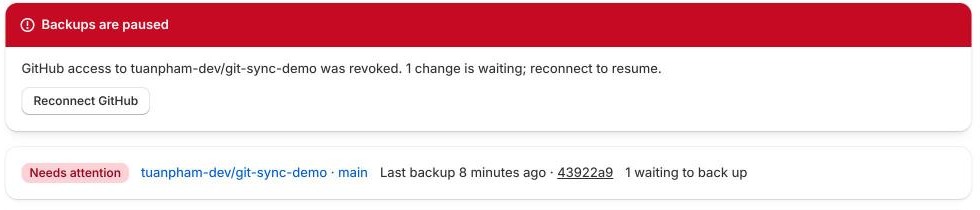
- The dashboard says Needs attention
- Git Sync has lost access to the repository, usually because the GitHub App was removed, suspended, or its access to that repository was withdrawn. Nothing is lost: changes are kept while this lasts and go in together once access is back. Choose Reconnect GitHub on the dashboard, or open Settings and choose Manage GitHub access.
- Items are waiting
- Every plan covers a number of items per type. New items past that number wait, and everything already backed up keeps saving. Deleting a backed up item lets a waiting one in, and moving to a larger plan takes them all at once. The Plan page shows the count per type.
- Files show as not copied
- On Free, the details of a file are saved and the image or video itself is not. During a free trial, copies are kept up to 1 GB, and the plan’s own storage starts when the trial ends, taking in any file that was waiting for room. On a paid plan, a file over 500 MB, an external video, or a file Shopify is still processing is recorded with the reason instead. Processing files are tried again at the next check.
- A change has not appeared
- How quickly a change is saved depends on the plan. Shopify sends no notice for menus, redirects and files, so they are found by a check every fifteen minutes. On Free, changes are committed once a day. Settings has Run full backup again if you want the current state saved now. The Activity page lists what has been saved and when.
Reading your repository
Each item is one JSON file, named by its Shopify ID, in a folder per kind of content: products/, collections/, pages/, blogs/, articles/, menus/, redirects/, metaobjects/, metafield-definitions/, files/ and shop/. Naming files by ID means renaming a handle keeps an item’s history in one place.
A commit message says what changed, such as Sync: 1 product updated, and a restore is committed the same way. Keys are sorted and volatile fields are left out, so an item that did not really change never produces a commit. Git Sync only adds commits to the branch you chose, and leaves files outside its own folders alone.
Leaving
Uninstalling stops the backups at once. Git Sync removes what it holds about your store, including copies of your files, within 48 hours. Your repository and its whole history stay as they are, readable without the app. If you want the file copies too, download them from each file’s page before you uninstall.
Still stuck
Write to support@extstore.com with your store address and what you were doing, and see the support page for the shorter answers.